Customer Portal
The customer portal lets customers manage their wine club subscriptions from their Shopify account page. Customers access it by logging into their account and navigating to the Subscriptions section.
New Customer Accounts required
Shopify has retired the old customer accounts system. Tectalic Wine Club requires the new customer accounts to work. Learn more about upgrading.
Overview
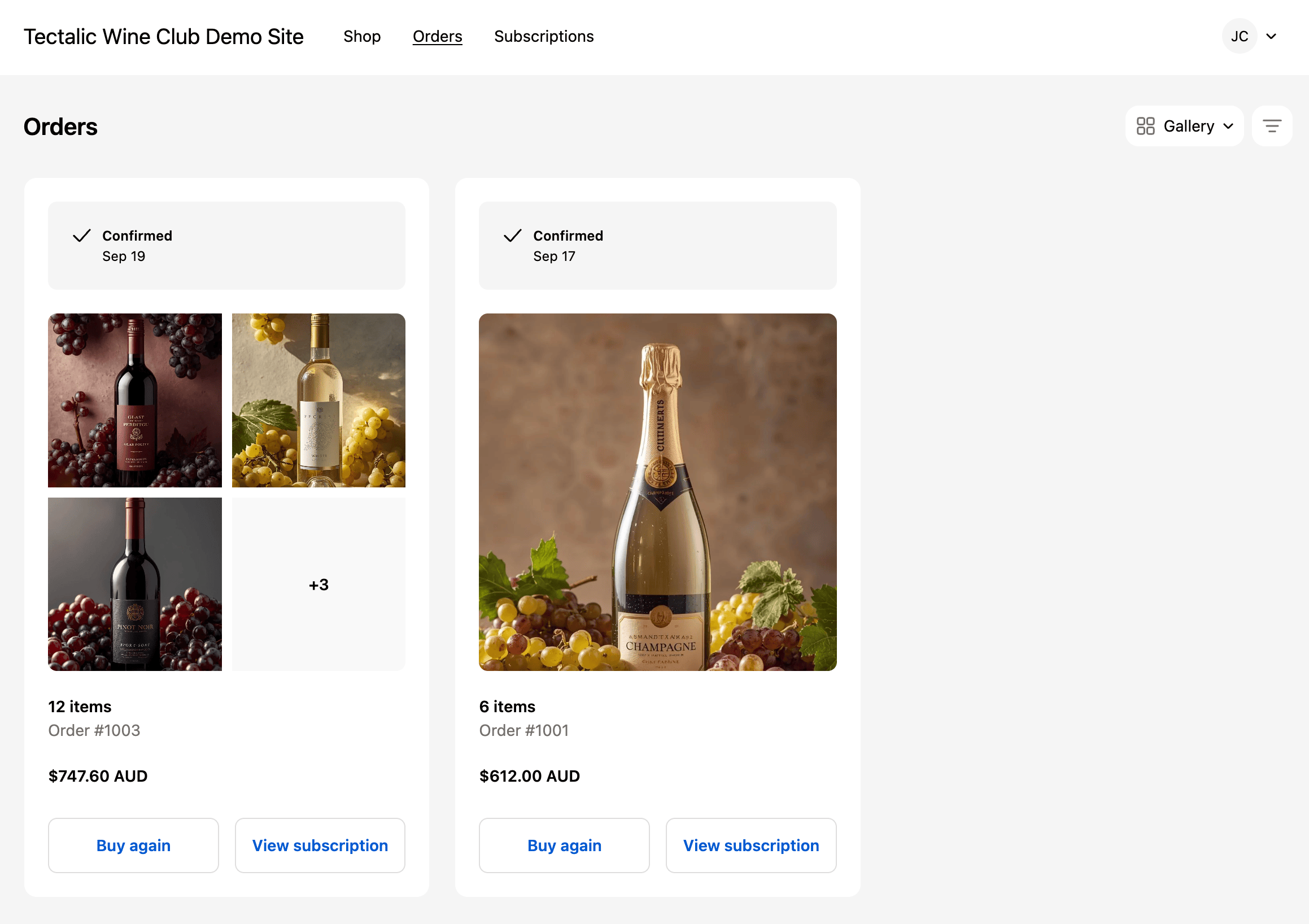
When a customer views their order history in their account, they will see a View Subscription button on subscription orders, which lets them manage their subscription:
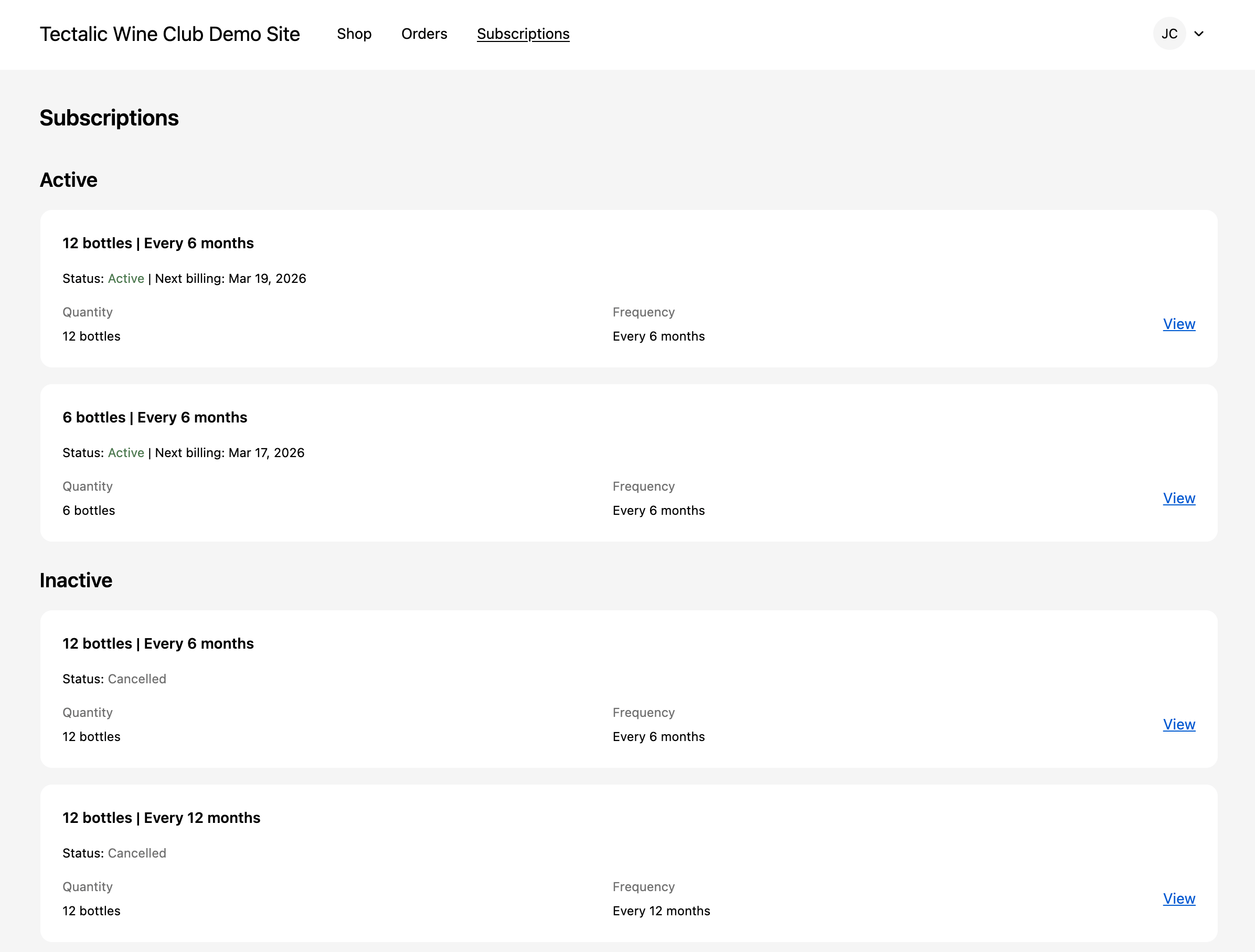
The portal displays subscriptions grouped by status (see Subscription Statuses for full details):
- Active — Currently billing on schedule
- Paused — Temporarily on hold, can be resumed
- Failed — On hold due to payment issues, can be reactivated
- Ended — Cancelled subscriptions
Each subscription shows the quantity (bottle count), frequency, status, and next billing date.
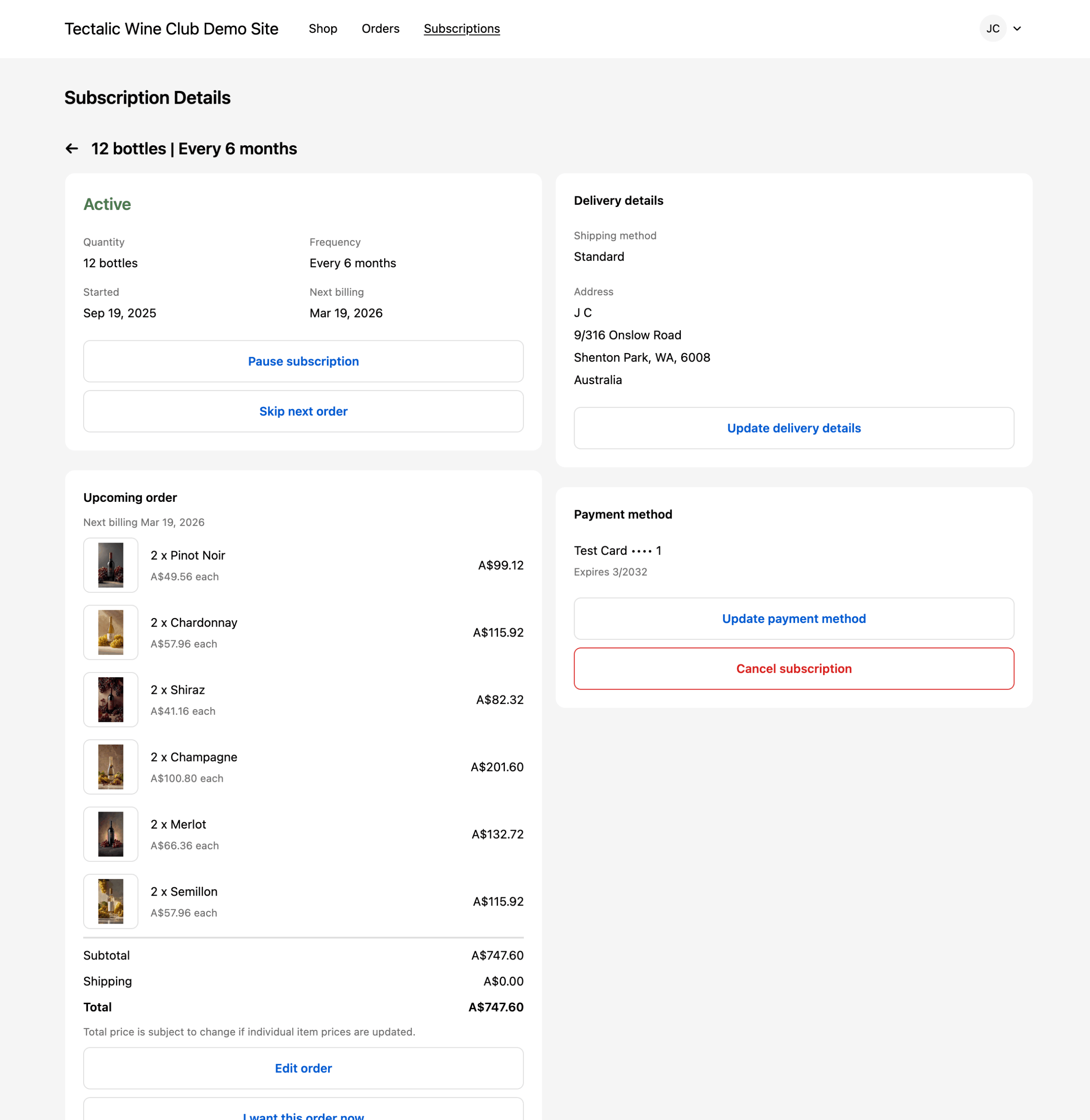
Clicking View on a subscription shows the full details, including the upcoming order, delivery information, and payment method. If a promotional discount applies, the upcoming order section shows the discounted price with the original price struck through, so the customer sees what they'll actually pay.
Logging in
The customer portal lives inside Shopify's customer account, so customers log in through Shopify's standard account flow. There is no separate password to set up or invite link to redeem.
By default, Shopify uses passwordless sign-in. The customer enters their email address, Shopify sends them a one-time 6-digit verification code, and they enter that code to log in. The account is provisioned automatically the first time someone successfully signs in for an email address — so imported customers and brand-new customers go through the same flow as everyone else.
The links in app-generated emails (upcoming order reminders, billing notices, the "Add a payment method required" email, and so on) all point at the customer's subscription page. If the customer isn't already signed in when they click, Shopify shows the sign-in screen first and then takes them straight to the subscription page once they've entered their code.
Other sign-in methods
Shopify also supports Sign in with Shop (when Shop Pay is enabled) and social sign-in with Google or Facebook. These are configured in your Shopify admin under Settings > Customer accounts — see Shopify's Customer accounts documentation for the full set of options and how the sign-in screen looks to customers.
Real-time progress feedback
When a customer performs any action in the portal, they see real-time progress feedback showing what's happening with their request. This includes:
- A spinner with a status message while the action is being processed
- The subscription page is disabled while the action is in progress, preventing conflicting actions
- When the action completes, the page automatically refreshes with the updated data — no manual reload needed
- If something goes wrong, a clear error message is shown
If the customer tries to perform another action while one is already in progress, the portal detects the existing operation and shows its progress instead of displaying an error.
Available actions
The actions available to customers depend on the club type and subscription status.
| Action | Description | Choose Your Own | Curated |
|---|---|---|---|
| View | View subscription details and upcoming order | Yes | Yes |
| Pause | Temporarily pause billing and deliveries | Yes | Yes |
| Resume | Resume a paused subscription | Yes | Yes |
| Cancel | Permanently end the subscription | Yes | Yes |
| Skip | Skip the next scheduled order | Yes | Yes |
| Order Now | Charge and deliver the next order immediately | Yes | Yes |
| Change Items | Modify wine selection for future orders | Yes | No |
| Change Delivery | Update delivery address or method | Yes | Yes |
| Update Payment | Update the payment method on file | Yes | Yes |
| Reactivate | Reactivate a failed subscription | Yes | Yes |
Pause
Pausing temporarily stops billing and deliveries. The subscription stays in a paused state until the customer resumes it. No orders are created while paused.
Resume
Resuming a paused subscription restarts billing on the next scheduled date. The customer can resume at any time from the portal.
Cancel
Cancelling permanently ends the subscription. Any orders already placed or in progress continue as normal. This action cannot be undone.
Skip
Skipping pushes the next order to the following billing cycle. The customer sees the skipped date and the new next billing date before confirming.
Order Now
Order Now charges the customer immediately for their next scheduled order. Since the order is placed early, future orders also shift forward accordingly.
If the subscription has no payment method on file, Order Now is blocked before any charge is attempted and the customer sees a clear message asking them to add a payment method first.
Change Items
Available for Choose Your Own clubs only. Customers can browse the available product pool and modify their wine selection, as long as the total number of bottles matches the case size. Changes apply to the upcoming order and all future orders.
Customers reach this screen from the customer portal, either by signing into their Shopify account or by clicking the link in the upcoming order reminder email that arrives 14 days and 2 days before each billing date. There is no separate landing page. The portal shows the full product pool, the same wines they could pick from at signup.
Wines that are temporarily out of stock are shown marked Out of stock. Customers who already have one in their selection can keep it or reduce the quantity but cannot add more.
If a customer doesn't change their selection before billing, the same wines and quantities ship again. They don't need to log in and there's nothing to confirm.
If the subscription has a promotional discount, the confirmation screen shows discounted totals and a note that the discount will carry forward to future orders.
Order Note
Customers can view and edit the order note on their subscriptions. The order note is a free-text instruction for deliveries, such as "Leave at the back door" or "Ring doorbell on arrival". The note is automatically included on all future subscription orders.
The order note is available for active and paused subscriptions. Notes are also visible to merchants on the view subscription screen in the Shopify admin. See Order Note for how notes appear on orders.
Change Delivery
Customers can update their delivery address or switch between delivery methods (shipping, local delivery, or winery pickup), depending on what you have configured.
When changing delivery, the portal checks which delivery options are available for the new address and shows the customer their options along with any shipping cost changes.
Delivery methods
The three delivery methods — Shipping, Local Delivery, and Winery Pickup — are configured in your Shopify admin under Settings > Shipping and delivery. The portal automatically shows whichever methods are available for the customer's address.
Update Payment
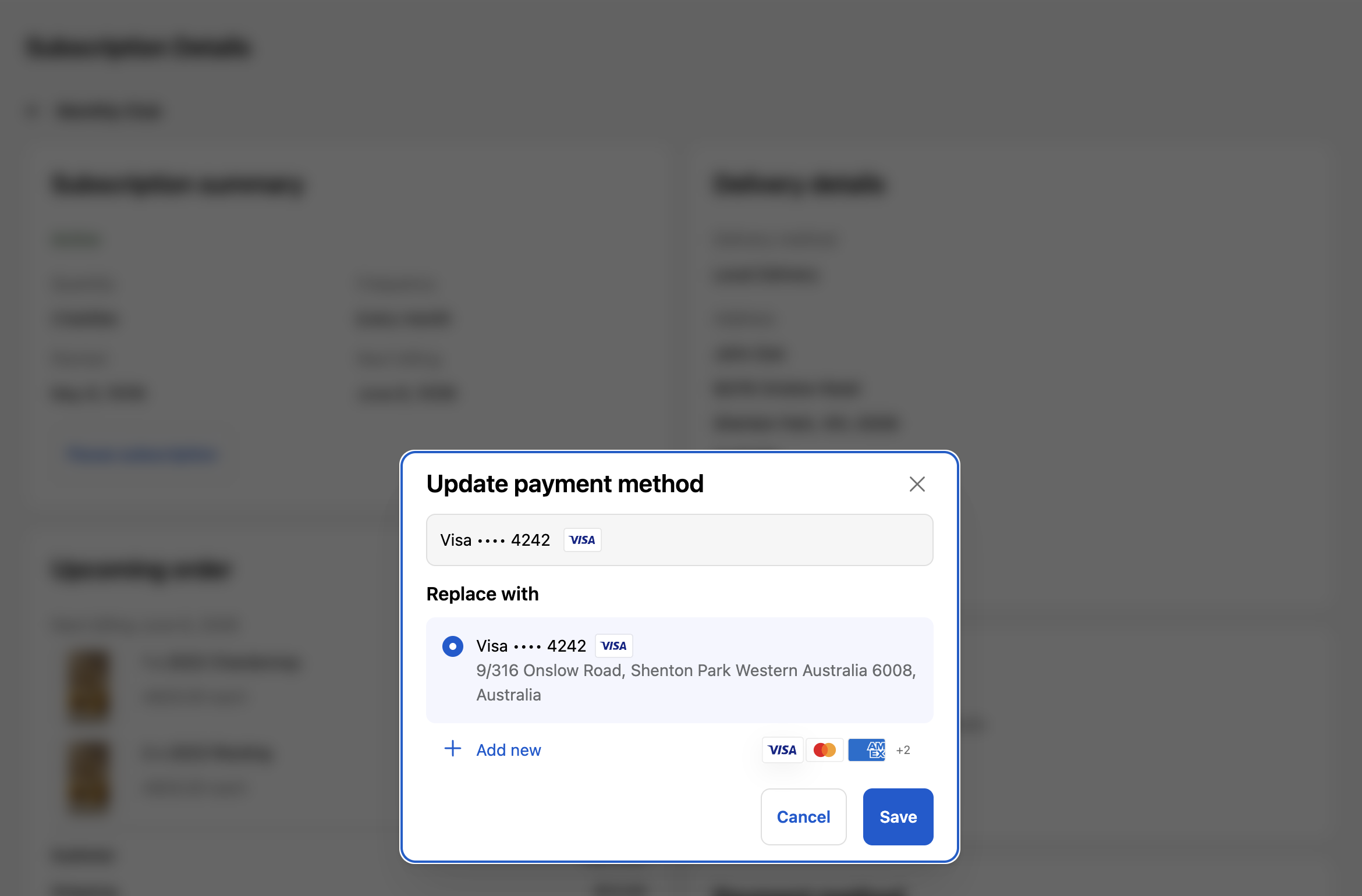
Clicking Update payment method opens an inline modal showing the customer's current card and any other saved cards on their Shopify account. They can switch cards or add a new one and the change applies immediately on save.
Shop Pay
Cards stored in Shop Pay are managed by the customer in the Shop app, not on your store. A member who adds a new card in the Shop app should also select it here — adding a card to Shop Pay doesn't automatically move existing subscriptions onto it. Editing the details of the card already in use (for example a new expiry date) applies automatically, with nothing to change in the portal.
Imported subscriptions
Customers without a payment method on file see a prominent warning banner at the top of the subscription page with an Add payment method call to action. Clicking it takes them to their Shopify customer account profile to add a payment method. Customers arriving from a billing-failed or upcoming-order email — or from a merchant-sent "Add a payment method" prompt — see this banner immediately rather than having to find the Payment method card.
Reactivate
If a subscription is on hold due to payment failures, the customer can reactivate it from the portal. Reactivation charges the customer immediately. The portal recommends updating payment details before reactivating.