Managing Subscriptions
You can view and manage all subscriptions from the Tectalic Wine Club admin.
Subscription list
The subscription list shows all subscriptions with tabs to filter by All, Active, Paused, Failed, Cancelled, or Has Issues.
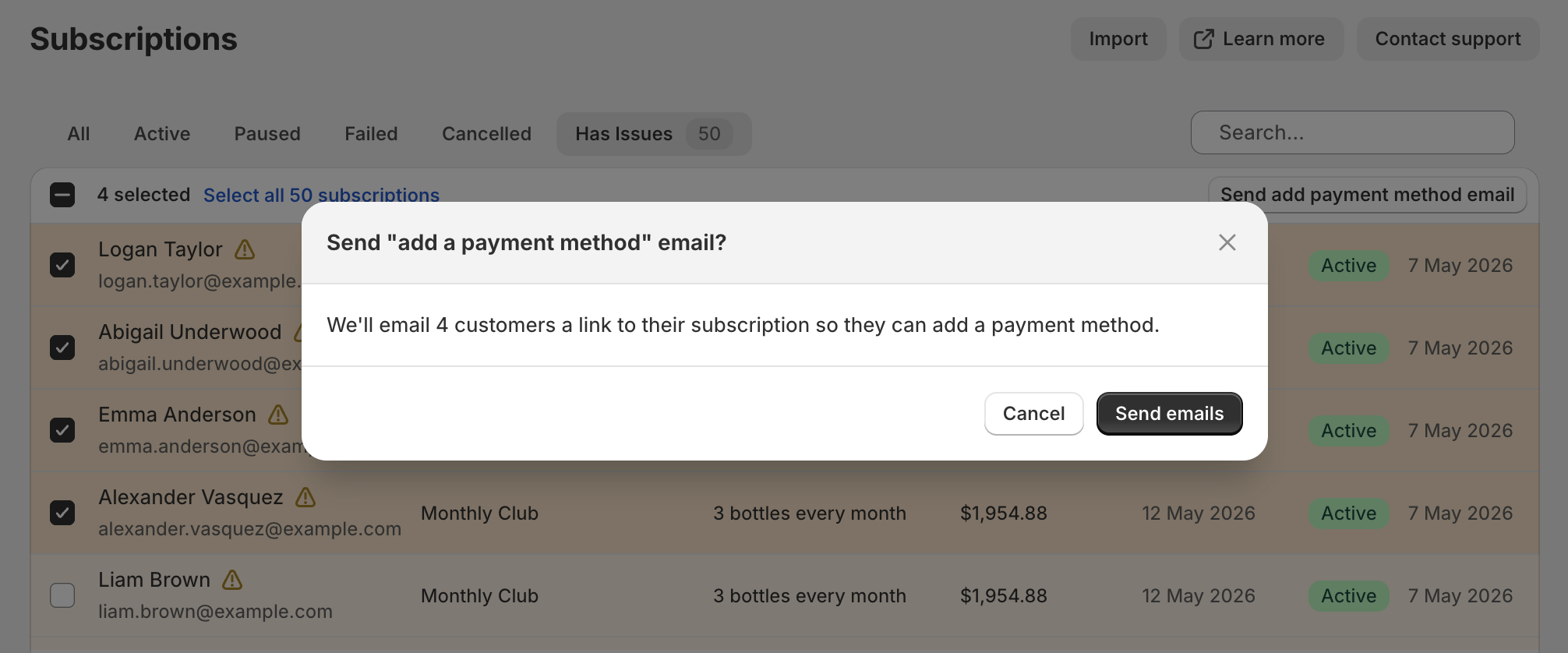
If a subscription has an issue that needs your attention, its row is highlighted in orange with a warning icon. Hover over the icon for a summary, or click the row for full details. Warnings include:
- No payment method on file — the subscription doesn't have a payment method attached, common for imported subscriptions before the customer adds one. See No payment method on file below for how to resolve this.
- Email delivery issues — the customer's email address is bouncing or has been flagged for spam. See Email Delivery Issues below for details on resolving bounces and suppression.
The Has Issues tab shows a badge with the current count and lists every subscription with an active warning. Review this tab after a CSV import or whenever you need to triage outstanding issues.
You can also import subscriptions in bulk from a CSV file using the Import button at the top of the list.
Searching subscriptions
Use the search field at the top of the subscription list to find customers by name, email address, or club name. You can also search directly from the dashboard — the search navigates to the subscription list with your search term pre-filled.
Note
Customer name and email search queries the Shopify Admin API. If this is temporarily unavailable, search falls back to club name matching only, and a banner informs you of the limitation.
Bulk actions
Select one or more subscriptions to reveal a row of bulk actions above the table. Every bulk action follows the same pattern:
- Selecting across pages — Selecting the header checkbox selects the current page. The table then offers a Select all N subscriptions option that extends the selection to every subscription matching the current view and search.
- Confirmation step — Each action opens a confirmation dialog summarising what will happen and how many subscriptions are affected before any changes are made.
Available bulk actions:
- Send add payment method email — Emails each selected customer a link to add a payment method to their subscription. Subscriptions that already have one are skipped automatically. This is the recommended way to follow up after a CSV import.
Subscription statuses
Each subscription is in one of these statuses:
| Status | Description |
|---|---|
| Active | Billing on schedule — orders are created and charged automatically |
| Paused | Temporarily on hold — can be resumed by the customer or merchant |
| Failed | Ended due to repeated payment failures — can be reactivated after updating payment |
| Cancelled | Permanently ended by the customer or merchant — cannot be undone |
Subscription details
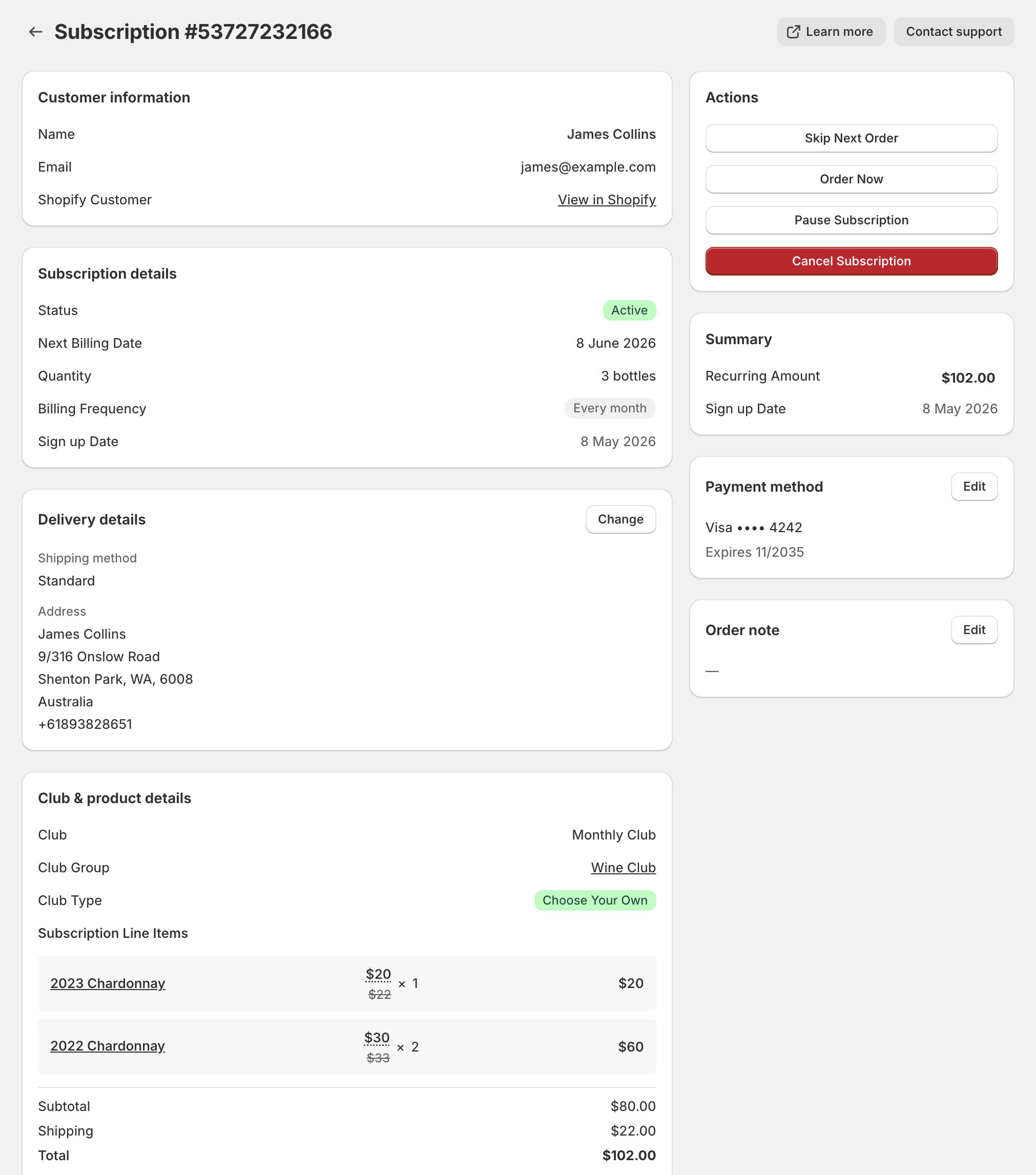
Clicking a subscription opens the detail view. The main column shows these cards in order:
- Club Subscription — the club offering, club group, club type, what the customer receives and how often (for example "3 bottles every 3 months"), sign up or imported date, status, and the upcoming orders schedule. For active subscriptions, the first upcoming order is the next billing date. The schedule shows the first three orders, with Show more to reveal up to six, and a continuation cue indicating that orders keep recurring on the same schedule beyond those listed. Where delivery runs on a different cycle to billing, a separate delivery frequency row appears. Change next billing date, Order now and Skip next order sit as buttons at the bottom of the card.
- Products — current items, quantities, and pricing totals, with Change items available for Choose Your Own clubs.
The right rail shows these cards in order:
- Customer information — the customer's name, email, and Shopify customer record
- Payment method
- Delivery details — delivery method and address
- Order note
- Origin order, when present
The activity log appears below the subscription information.
Promotional discounts
When a customer signs up with a Shopify automatic discount (like "10% off for wine club subscribers" or "$10 off"), that discount is saved on the subscription and applied at each billing.
The subscription detail page shows the price your customer actually pays — the prices that were locked in for that subscription at signup (or when items were last changed or repriced). Each product shows the sale price with the original price struck through beside it. Hover over the sale price to see the discount name and amount. Subtotals and totals use the discounted amounts. See How pricing works for the rules on when these prices change.
Real-time progress feedback
When you perform any action on a subscription, the app shows real-time progress directly on the page. You'll see:
- A banner with a spinner and status message while the operation is being processed
- The page is greyed out while the operation is in progress, preventing conflicting actions
- When the operation completes, the page automatically refreshes with the updated data
- If something goes wrong, an error message is shown so you know what happened
For bulk operations like Replace Product, the subscription page also shows the overall bulk progress (e.g., "Updating items — part of Replace Product: 150/200 subscriptions updated").
Actions
You can perform the same actions as customers, plus you have visibility into the full activity history. Actions sit where you'd expect them from the rest of the Shopify admin: the lifecycle actions are in the page header, and the contextual actions are on the card they relate to.
| Action | Where to find it | What it does |
|---|---|---|
| Pause subscription | Page header | Temporarily pause billing and deliveries |
| Resume subscription | Page header | Resume a paused subscription |
| Reactivate subscription | Page header | Reactivate a failed subscription |
| Cancel subscription | Page header, under More actions | Permanently end the subscription |
| Change next billing date | Club Subscription card | Move the next order to an earlier or later date |
| Order now | Club Subscription card | Charge the customer immediately for their next order |
| Skip next order | Club Subscription card | Skip the next scheduled order |
| Change items | Products card | Modify wine selection (Choose Your Own clubs only) |
| Change delivery | Delivery details card | Update the delivery address or method |
| Update payment method | Payment method card | Update the card or send the customer an update link |
| Edit order note | Order note card | Add or edit a note that appears on all future orders |
The page header shows the lifecycle action for the subscription's current status — Pause subscription while active, Resume subscription while paused, or Reactivate subscription once failed — with Cancel subscription under More actions. On the Club Subscription card, Change next billing date, Order now and Skip next order sit together as buttons across the bottom of the card. You only see the buttons for the features enabled on your store. The delivery details, payment method and order note cards each have a pencil (edit) icon in their header.
Pause
Use Pause subscription in the page header to stop billing and deliveries until you or the customer resumes the subscription. Use this when a customer requests a temporary hold (e.g., travelling, or excess stock).
Resume
Resume subscription appears as the main page-header action for a paused subscription and restarts billing on the next scheduled date.
Cancel
Cancel subscription lives under More actions in the page header. Cancelling permanently ends the subscription. Any orders already placed or in progress continue as normal. This cannot be undone.
Skip
Choose Skip next order on the Club Subscription card. Skipping pushes the next order to the following billing cycle. The skipped billing date and new next billing date are shown before confirming.
Order now
Order now, on the Club Subscription card, charges the customer immediately for their next scheduled order. This is useful when a customer wants their delivery early. Since the order is placed early, future orders also shift forward.
If the billing attempt fails (e.g., due to inventory issues), no automatic retries occur. You need to resolve the issue and trigger Order now again.
If the subscription has no payment method on file, the Order now action is blocked before any charge is attempted and a clear error message is shown. See No payment method on file for how to prompt the customer to add one.
Change next billing date
Change next billing date lets you move an active subscription's next order to a different date, by choosing Change next billing date on the Club Subscription card. This is useful for batching club orders to a single fulfilment day, such as shifting an order from the 15th to the 1st of the month.
The modal shows the current schedule beside the new schedule, so you can see exactly what you're changing before you confirm. Pick a date and the new schedule fills in with the upcoming order dates that will follow it. A continuation cue beneath each column shows that orders keep recurring beyond the dates listed. You can choose any date from at least 48 hours away up to one billing interval beyond the current next billing date. The date picker blocks out dates outside this range. If the next order is overdue to be billed, the calendar is replaced with a message that no dates are available.
If the subscription has an overdue unpaid order, moving the next order date replaces that charge — it won't be retried, and the customer is billed on the new date instead. The dialog warns you when this applies and shows the unpaid order's date.
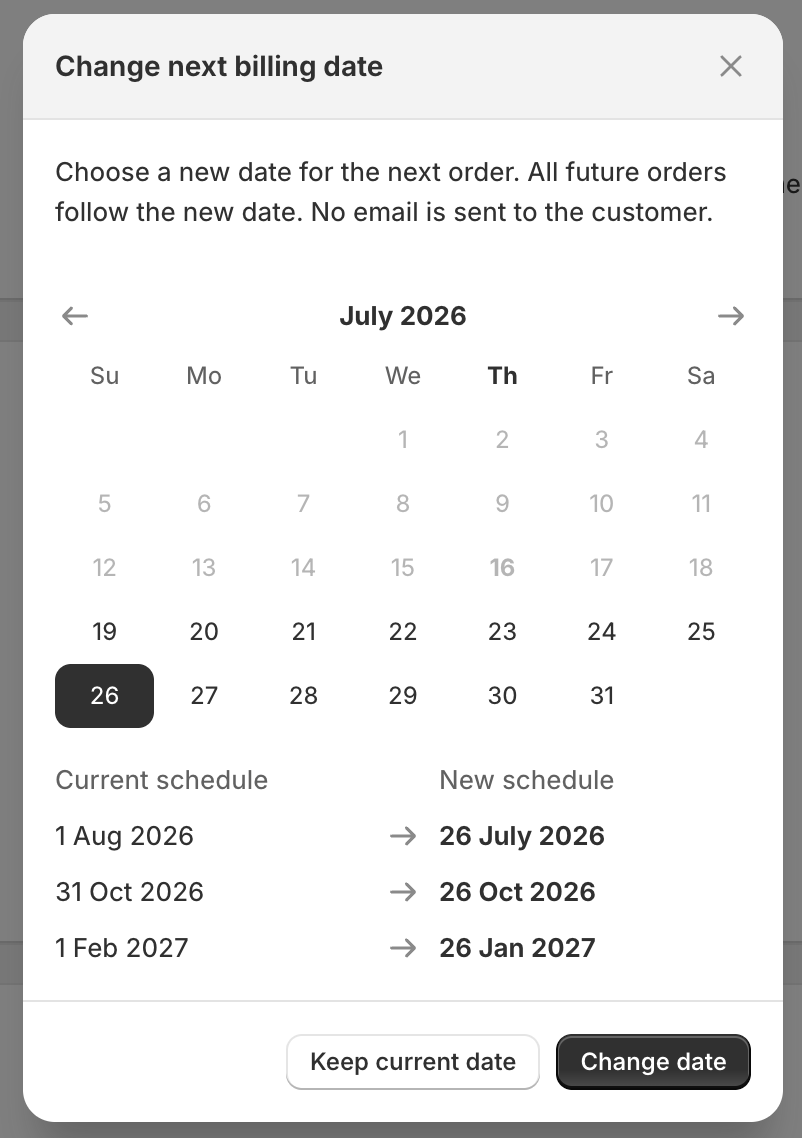
Every future order follows the new date, and no email is sent to the customer. Once the change is confirmed, the page refreshes and the upcoming orders schedule shows the full updated set of dates, with the next billing date listed first.
Month-end dates
Not every month has a 29th, 30th or 31st. For subscriptions billed every 3, 6 or 12 months, choosing one of these dates means the first order arrives on the exact date you picked and later orders arrive on the 1st of the following month — moving a quarterly subscription's next order to 31 October schedules the following orders for 1 February, 1 May and 1 August. To keep every order on the same day of the month, choose the 28th or earlier. Monthly subscriptions simply bill on the last day of shorter months.
The customer isn't emailed about the change, but they still receive their normal pre-billing reminders for the new date. See Pre-billing reminders.
Change items
Available for Choose Your Own clubs only, using Change items on the Products card. You can modify the wine selection on behalf of the customer. The total number of bottles must match the case size. Changes apply to the upcoming order and all future orders.
Wines that are temporarily out of stock are shown marked Out of stock. If the subscription already has one in its selection you can keep or reduce it, but not add more.
If the subscription has a promotional discount, the confirmation screen shows discounted prices and an info banner noting the discount will carry forward.
By default, the customer receives an email when their items are changed. To make a change silently, uncheck Send notification email to customer before saving.
For Curated clubs, the wine selection is fixed and cannot be changed.
Change delivery
Click the pencil (edit) icon in the delivery details card header to open the Change delivery dialog, where you can update the delivery address or switch between delivery methods (shipping, local delivery, or winery pickup). The system checks which delivery options are available for the address and shows the available options along with any shipping cost changes.
Order note
You can add or edit an order note on behalf of the customer. The order note appears in its own card on the subscription detail page. Click the pencil (edit) icon in the card header to open the editor.
The note is included with all future orders for this subscription and appears in the Shopify order notes field. Use it for special instructions like delivery preferences, gift messages, or scheduling requests.
The note is not private. The customer sees it in the upcoming order reminder email, and in the customer portal, where they can edit it themselves. Keep it to instructions you're happy for them to read.
For general member notes, use the Shopify customer profile
The order note is meant for short, per-order delivery instructions that get printed on the packing slip. If you want to record longer-lived information about a member — favourite varietals, dog's name, allergies, conversation history — keep that in the Shopify customer profile. The Notes field there and the Timeline both stay attached to the customer across every order, subscription, and visit.
Setting up a subscription as a gift
There's no dedicated gift mode, but the existing flow handles it cleanly:
- The buyer signs up with their own email address and payment method
- The delivery address goes to the gift recipient (set during signup, or updated via Change delivery afterwards)
- The order note carries the gift message and the sender's name so the recipient knows who it's from
The buyer keeps billing and customer portal access on their own Shopify account; the recipient receives the wines.
Update payment method
The payment method card shows the customer's payment method — card brand, last four digits, and expiry date (or PayPal email). Click the pencil (edit) icon in the card header to update it. You'll see two options:
- Send link to update card — Emails the customer a secure link so they can update their own card details.
- Manage payment on customer page — Opens the customer's profile in Shopify, where you can replace their card directly:
- Click the pencil icon next to Payment methods
- Click the three-dot menu next to the payment method
- Click Replace card and enter the new card details
Any changes to a customer's payment method automatically apply to all their wine club subscriptions.
If the subscription is paid through Shop Pay, the card is managed by the customer in their Shop Pay account and can't be replaced from the customer page. Use Send link to update card — Shopify directs the customer to the right place for their payment type — or ask the customer to switch cards in the customer portal. See Shop Pay subscriptions for how Shop Pay changes flow through.
Tip
For step-by-step instructions, see Edit a customer's subscription payment information in the Shopify Help Center.
No payment method on file
When a subscription has no payment method on file, a prominent warning banner appears at the top of its detail page. This is most common for imported subscriptions before the customer adds a payment method.
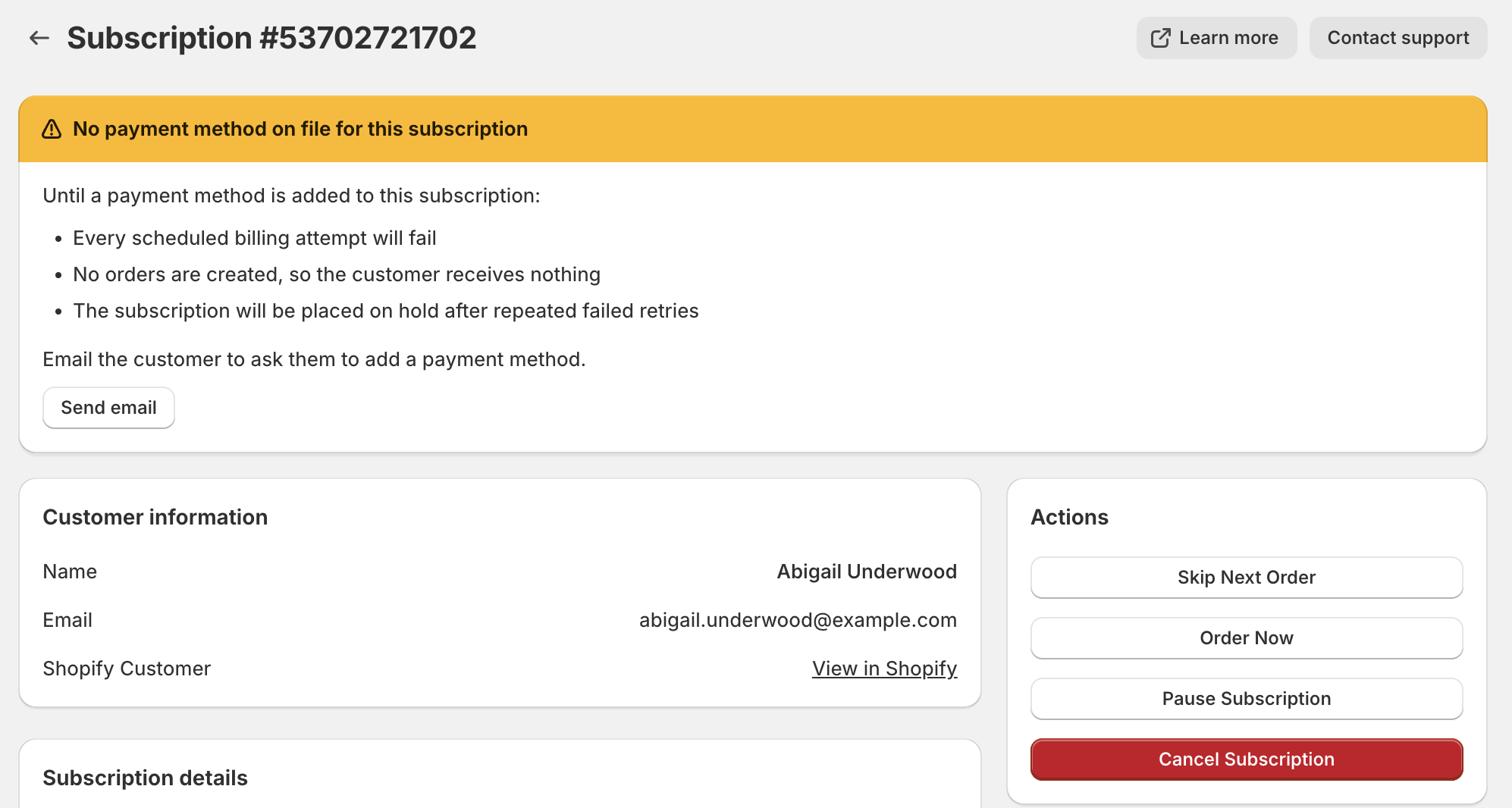
The banner includes a Send email action that emails the customer asking them to add a payment method. After clicking, a confirmation dialog shows the customer's email address and explains exactly what's about to be sent. On confirm, the email is queued and a success banner appears at the top of the page.
The email links them to their subscription page in the customer portal, where the same prominent banner walks them through adding a payment method via their Shopify customer account profile.
Send button safeguards
The action is checked against Shopify before the email is queued, so you'll see a clear error if the customer has actually added a payment method already (the local view can briefly lag behind Shopify), if their email is suppressed for delivery issues, or if you've already sent one within the last minute.
The "Add a payment method required" template can be re-subjected and disabled like any other customer email — see Settings > Email Templates.
Once the customer adds a payment method to their Shopify account, the app automatically attaches it to any of their subscriptions still missing one. The banner clears and a "Payment Method Added" entry appears in the activity log — no further action needed from you.
Reactivate
Available for Failed subscriptions, using Reactivate subscription in the page header. When a subscription fails due to payment issues, update the payment method before reactivating. Reactivating immediately attempts to charge the customer's payment method.
Activity log
Each subscription has an activity log showing all changes over time. Each entry includes:
- What changed — The action taken (e.g., paused, items changed, address updated, payment method added)
- Who made the change — Customer, merchant, or system
- When — Timestamp of the change
The activity log gives you a complete audit trail for each subscription.
Email delivery issues
If a customer's email address bounces or is marked as spam, a warning banner appears at the top of their subscription detail page. The banner shows the affected email address and explains why emails can't be delivered.
You have two options:
- Change email address in Shopify — Opens the customer's profile in Shopify admin where you can update their email. Once updated, the app automatically detects the change and clears the delivery block.
- Resume email delivery — If you've confirmed with the customer that their email address is correct (e.g., the bounce was temporary), click this to re-enable sending. You'll be asked to confirm that you've verified the address is valid.
Warning
Resuming delivery to an address that's still invalid will cause another bounce and may affect email deliverability across all your wine club emails. Always verify the address with the customer first.
Subscription activity continues
While a customer's email is blocked, their subscription continues as normal — renewals, billing, and deliveries still occur on schedule. The only difference is the customer won't receive any email notifications about these events. Skipped emails appear in the activity log so you can see exactly which communications the customer missed.
You also receive an email alert when a customer's email is first blocked. See Merchant Emails > Email Delivery Alerts for details.
Operation feedback
When you perform an action on a subscription or club, real-time feedback is shown directly on that page. Operation banners and progress are scoped to the specific subscription or club you're working on — you won't see banners for operations happening on other subscriptions or clubs while you're browsing elsewhere in the app.
Bulk operations like Replace Product or curated product updates show a progress bar on the club edit page while they run.